Symptom
The service serves a cert that expires earlier than the one in the source. The jobs look successful.
Fix
Rotate the token as in ↳ INF-20 and run the sync by hand.
Cards, documents and comments in one place — with an MCP server built in. Your AI assistant creates the cards, moves them and writes the runbook straight into the board, with no integration to build and nothing to copy back and forth.
Free during the beta. Sign in with Google or GitHub.
The MCP server lives in the backend behind an API key. Connect it once — then the assistant can read the board, create cards, move them and comment, with the same permissions you gave the key.
In Settings → API keys. It is shown once and stored hashed.
One line in your assistant. Works with anything that speaks MCP over HTTP.
“File these three bugs and set the first one to in progress.” The cards appear on the board while you watch.
# connect the board to your assistant
claude mcp add --transport http tasks \
  https://tasks.nu/mcp \
  --header "Authorization: Bearer tk_…"

# tools that become available
list_projects   create_issue   comment_issue
list_issues     update_issue   get_issue
Built to stay open all day: fast, keyboard-friendly and without surfaces you never use.
The same cards in two views. Column names, colours, order and visibility are yours to set — per project or as the default for all.
A card can belong to another, even in a different project. The parent shows how many of its children are done.
Press / and type. If nothing matches in the current project, all the others are searched automatically.
Write in markdown, paste images straight into the field. Ctrl+Enter sends.
Notes and decisions in the same workspace as the cards, linked to them. With a history of who wrote what.
Everything the web app does goes through the same REST API, behind keys you create yourself. Build your own integrations without asking anyone.
Everything that happens lands in one feed — who, what and when, whether it came from the web, MCP or an integration.
The whole workspace can be downloaded in a format you can read without us. Deletion means deletion.
Every workspace is its own world with its own projects, cards, documents, members, API keys and notifications. You switch with one click at the top of the menu and bring the same account, the same assistant and the same habits. What happens at work stays at work.
The colour is yours to pick — under Settings → Members.
Sign in with Google or GitHub and you are standing in your own workspace. Create more on the spot with “+ New workspace”; a name is all it takes.
Owner, admin or member, or just chosen projects: the shared person is an admin inside them but sees nothing else in the workspace. The link lasts seven days and the invitee needs a verified email that matches; with an existing account the next sign-in is enough. Colleagues on your domain can request to join and you approve them in the member list.
An API key normally belongs to one workspace, so the assistant sees only what it should. If you would rather not keep a key per context, tick “Reaches all my workspaces” when you create it: the same MCP connection reaches every workspace with your role in each, and the assistant switches with one tool. It can also create workspaces and invite people for you.
Take everything with you whenever you like: export the whole workspace as JSON, and deletion asks you to type the name. A workspace you leave does not disappear for the others.
Cards answer what needs doing. They are bad at how something works and why it ended up this way — that knowledge lands in a comment, in a wiki nobody opens, or in someone's head. Documents live in the same workspace as the cards and link to them.
An ops card shows the document that belongs to it. Nobody hunts through another tab in the middle of an incident.
Why was this solution chosen? Write it down once, link it from the cards it affects.
The same MCP connection that handles the cards. Ask it to read the runbook before acting, or to summarise a finished project.
Connect a Discord or Slack webhook per project or for the whole workspace, and choose what to hear about: new cards, status changes, comments. A test button shows right away whether the connection works.
During the beta every workspace has everything in Team, at no cost. This is what the plans will look like once billing arrives: per workspace, not per seat, because the value is in what the assistant does, not in how many people click. When it becomes paid we will say so well in advance, and you can take your data with you.
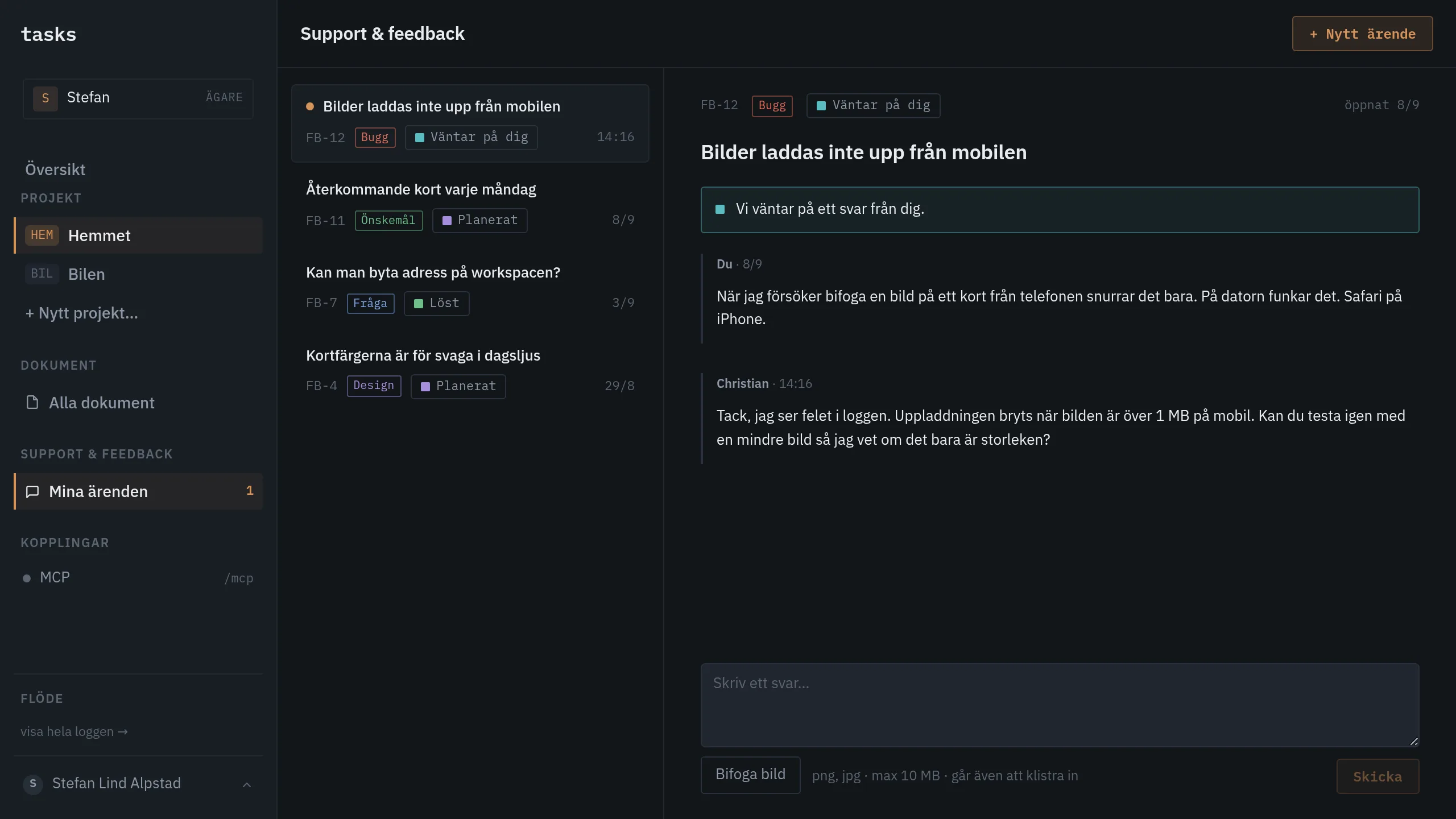
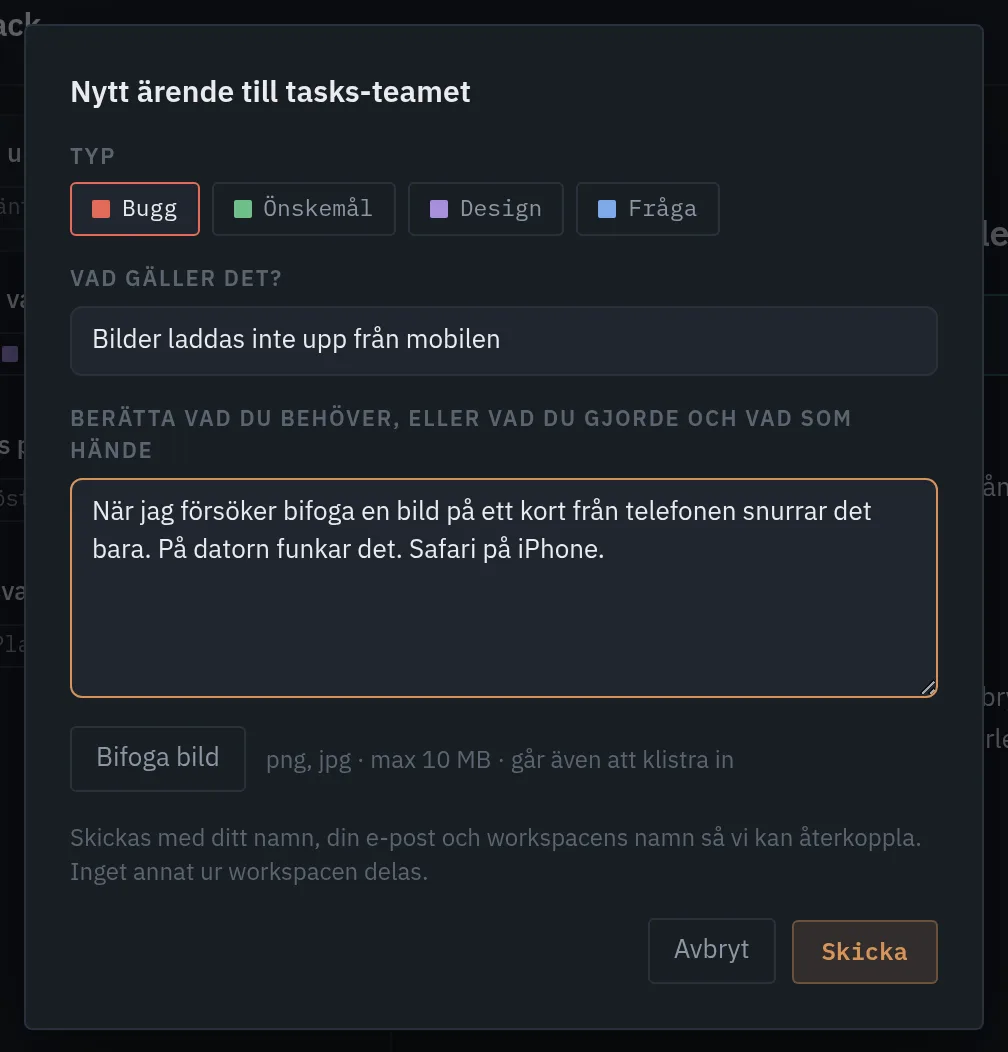
Support questions, feature requests, design opinions and bugs — all go the same way, from inside the app or by asking your assistant. You follow the report until it is resolved, see when we have answered and can attach images. No form on another site, no inbox to watch.
Pick whether it is a question, a request, a design opinion or a bug. A title, a line about what you need, an image if you like. Sent with your name and workspace so we can get back to you — nothing else.
Received, looking at it, planned, waiting for you, resolved. Requests we take on get the status planned so you can see it is happening. A mark in the menu when we have replied.
The same MCP connection that handles the cards can ask the question, file the request, list and reply to your reports.